How to Create an Invoice With AI (Free, as a PDF)
Short answer: Describe the job to an AI PDF generator — client, work, rate, terms — and it lays the invoice out on an A4 page with a real line-items table and totals. You preview it, fix anything by asking, and download the PDF. It takes a couple of minutes and costs nothing to try.
An invoice is a simple document with a simple job: tell a client what they owe, for what, and by when. The writing is easy. The part people actually get stuck on is the page — getting a table to line up, totals to sit at the bottom right, and the whole thing to look like it came from a business rather than a notes app.
That's the gap AI closes. Not by writing more words, but by building the document itself.
Plain chat versus a file-generation workflow
Plain chat can give you the invoice text and a table in the conversation. A ChatGPT session with file-generation tools can also create a formatted PDF. Tool availability and limits depend on the account and workspace.
If you only receive text, transfer it to a word processor or use a document generator to create the page. If you receive a downloadable PDF, inspect its margins, table and totals before sending it.
Our ChatGPT PDF guide explains the available workflows and links to OpenAI's documentation.
What a real invoice actually needs
Before the layout, the content. An invoice that gets paid without a follow-up email has these parts:
Get those right and the document almost writes itself. Miss the due date or the tax line and you'll be sending a follow-up, which is the thing an invoice exists to prevent.
Create the invoice, step by step
- Describe it. Open the invoice generator and describe the job in one sentence: who the client is, what you did, your rate, and the terms. If you already know the tax rate, say so.
- Look at the preview. The invoice renders as a live A4 page, not an abstract form. Check the numbers against your own notes before anything else.
- Fix it by chatting. Change a line item, split one into three, add a tax row, shorten the terms — you ask, and the document updates in place. There's no grid of cells to poke at.
- Download the PDF. You get a print-ready A4 file. No watermark, and exports are unlimited.
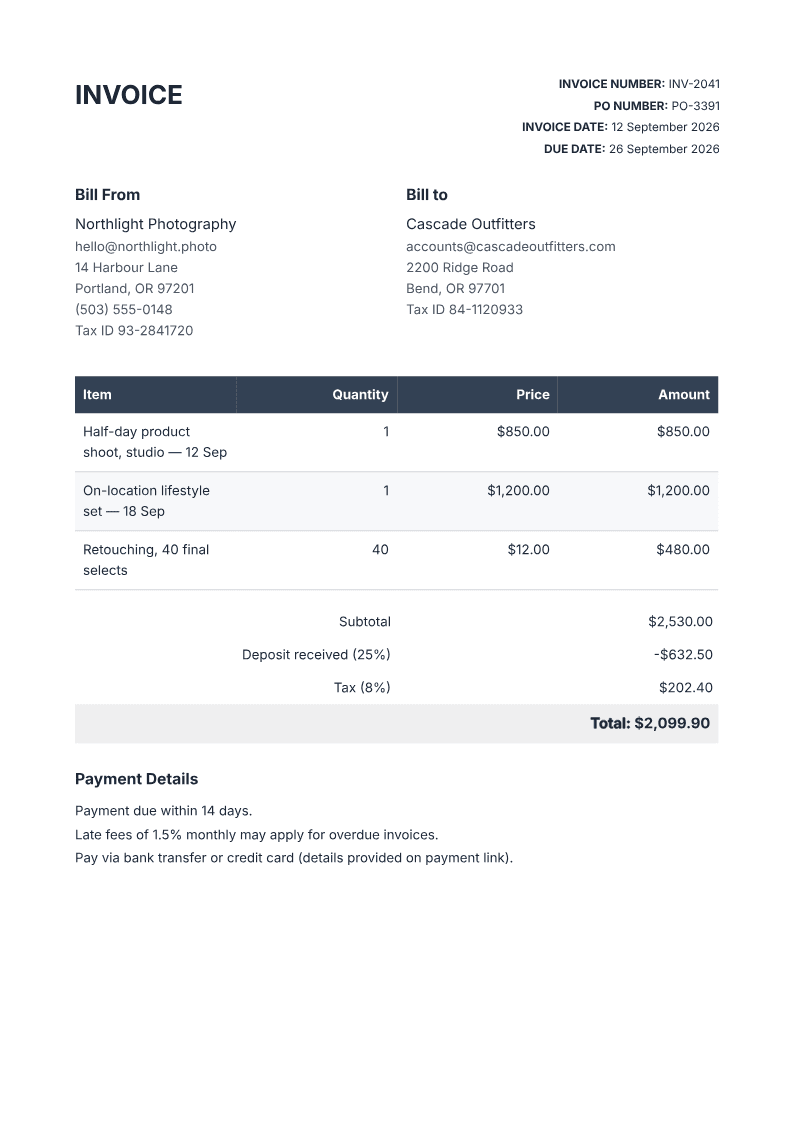
The whole loop is the same conversation. You're not filling in a form and you're not rewriting markdown by hand.
A note on totals and tax
One honest caveat: an AI-generated invoice is a document, not a bookkeeping system. It will lay out the quantities, rates, and totals you give it, and it will add a tax line when you ask — but it isn't checking your arithmetic against your ledger, and it doesn't know your jurisdiction's tax rules.
For the photography example, $850 + $1,200 + (40 × $12) = $2,530. A 25% deposit is $632.50. At 8% tax on the full subtotal, tax is $202.40 and the remaining balance is $2,530 + $202.40 - $632.50 = $2,099.90. This is fictional example arithmetic, not a rule for your tax jurisdiction.
Download the photography invoice PDF to inspect the table. For your own version, try: "Invoice my client for a studio shoot at $850, a location shoot at $1,200 and 40 retouched images at $12 each. Show a 25% deposit already paid, 8% tax on the full subtotal and 14-day payment terms." Replace the tax treatment and payment terms with your own requirements.
Check the issue date, due date and terms as well as the money. The example's September 12 issue date and September 26 due date now agree with its 14-day payment terms. Use your own agreed terms, and verify tax rates, deposit treatment and any late-fee wording for your jurisdiction before sending.
Work orders and packing slips are different documents
For a service job, first record the agreed scope, tasks, materials and sign-off on a work order. Use the invoice to bill the work, not to stand in for approval. Keep the job reference and customer details consistent between them.
For a shipment, include a packing slip listing the items and quantities in the box. Keep pricing and payment terms on the separate invoice, and check a partial shipment against the quantities actually sent.
Frequently asked questions
Can AI calculate the invoice total? It lays out quantity, rate, and amount per line, then a totals block, and it adds tax when you ask for it. Verify the arithmetic against your own records — it's your invoice, and the responsibility for the numbers is yours.
Is a free AI invoice actually free? With PaintPDF, yes. The free plan has no watermark and unlimited exports, covering around twenty PDFs a month. You can generate, preview, and download without paying.
Can I add my logo? Your business name and address are just text, so put in whatever you use. A logo is an image block, which needs a JPEG or PNG URL — paste one in and the agent places it on the page.
Will it look professional? That's the point of building the document rather than the text. You get a real table with aligned columns, a totals block, sensible margins, and your choice of accent colour — a page you can send without apology.
Describe the invoice and PaintPDF builds a print-ready A4 PDF with a real line-items table and totals. Free, no watermark.
Open the invoice generator